This page is optimized for desktop computers and tablets. To access it, try one of the following points:
- Access this page from a different device.
- If you’re on a tablet, rotate it.
- Check the “Desktop site” option in your browser settings.
This page is optimized for desktop computers and tablets. To access it, try one of the following points:
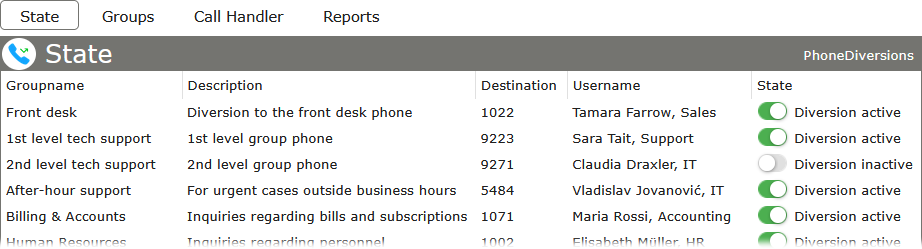
The State tab within the application’s web GUI gives users an overview allows users to activate or deactivate diversions. This section provides the necessary controls for performing these actions.
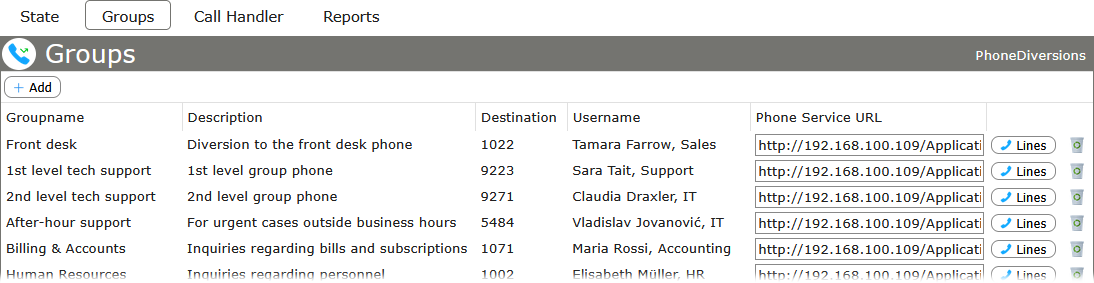
In the Groups tab of the application, you can manage all the defined Diversion groups. This includes creating and deleting groups. Once a group is created, it will be listed in the State tab.
To create a new group, click on the Add button and fill in the following form fields:
The Phone Service URL contains a parameter called groupID, which corresponds to each group. You can copy this URL to the Communication Manager. Further details about this service are explained in the chapter CUCM configuration.
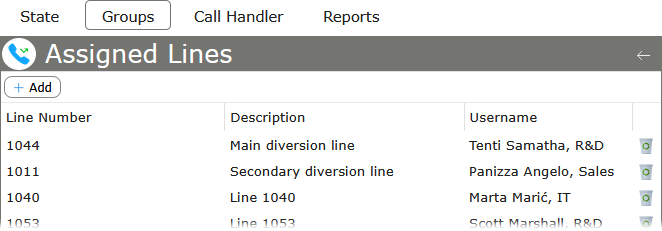
The Lines button opens a configuration page where you can assign lines to the corresponding group. You can add, rename, or delete lines in this section. When adding a new line, fill in the following information:
Info: The usernames shown in both the Groups view and the Assigned Lines view always display the username associated with the given line number, as set in the Callisto user administration.
The Call Handler tab is used to configure how incoming calls are handled.
If an incoming call to the PhoneDiversions number was redirected before, Call Handler gives users the ability to redirect the call back to the initial number (the previous audio announcement will be played to the caller). Alternatively, the audio announcement can be played without redirecting the call to the initial number by disabling the Connect with called destination number option seen in the screenshot below.
In the text field Direct Access Numbers, the user can define numbers that will be connected to the initial number immediately, both overriding the Connect with called destination number option and omitting the audio announcement.
By clicking on the Upload new audio file button, a new dialog opens where audio files can be uploaded.
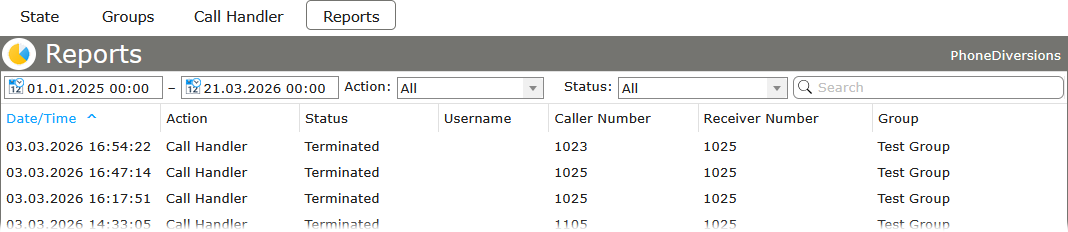
The Reports tab keeps track of any changes regarding activation/deactivation of diversions, as well as call transfers.
Freiburgstrasse 251
CH-3018 Bern
Switzerland
T: +41 31 531 11 11
F: +41 31 531 11 12
sales@ctmodule.com
Gospodara Vučića 145
RS-11000 Belgrade
Serbia
T: +381 18 308076
sales@ctmodule.com