This page is optimized for desktop computers and tablets. To access it, try one of the following points:
- Access this page from a different device.
- If you’re on a tablet, rotate it.
- Check the “Desktop site” option in your browser settings.
This page is optimized for desktop computers and tablets. To access it, try one of the following points:
 Export Article
Export Manual
x
Export
Export Article
Export Manual
x
Export
 Print
Print
The Settings screen configures how the ProfACD Viewer web page is rendered within the COC HTML pane. It controls which queues and agents are displayed, how often the view is refreshed, and which interactive features are available to the agent.
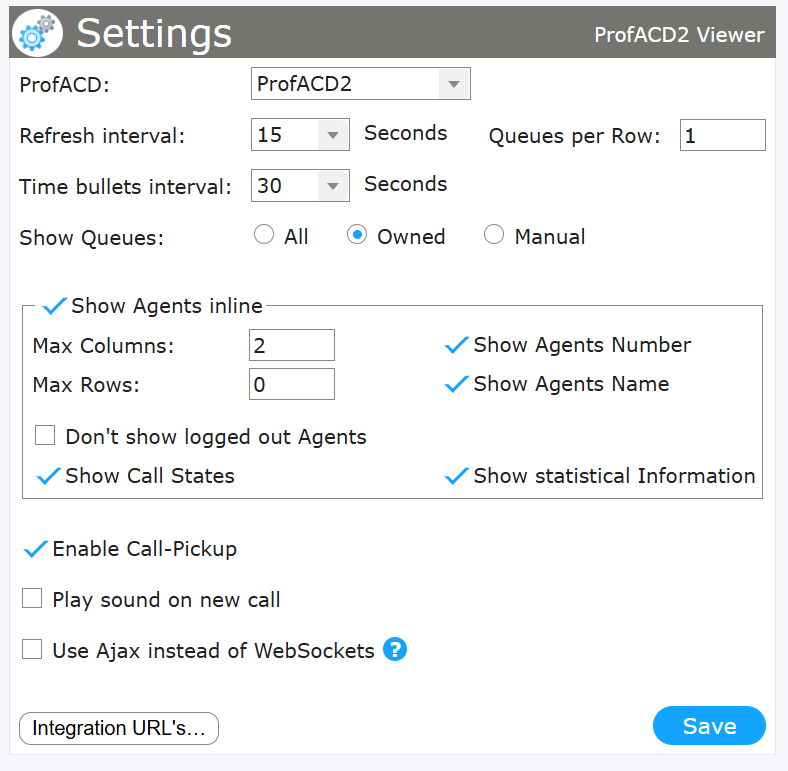
| ProfACD | Selects the ProfACD instance this Viewer is associated with. Each ProfACD Viewer is linked to exactly one ProfACD instance. |
| Refresh interval | Sets how often, in seconds, the displayed information is refreshed. |
| Queues per Row | Sets the number of queues displayed side by side in a single row. |
| Time bullets interval | Sets the time span, in seconds, represented by each time bullet used to visualize call waiting times. |
| Show Queues | Determines which queues are displayed. All shows all available queues, Owned shows only the queues owned by the logged-in agent, and Manual shows only a manually selected set of queues. |
When Show Agents inline is enabled, agents are displayed inline within each queue. The following options apply.
| Max Columns | Sets the maximum number of agent columns shown per queue. |
| Max Rows | Sets the maximum number of agent rows shown. A value of 0 means unlimited. |
| Don't show logged out Agents | When enabled, agents who are logged out are hidden from the view. |
| Show Agents Number | Displays each agent’s number. |
| Show Agents Name | Displays each agent’s name. |
| Show Call States | Displays the current call state of each agent. |
| Show statistical Information | Displays statistical information for the agents and queues. |
| Enable Call-Pickup | Allows an agent to pick up a call ringing in the queue directly from the Viewer. |
| Play sound on new call | Plays an audible notification when a new call arrives. |
| Use Ajax instead of WebSockets | Switches the data transport from WebSockets to Ajax polling. Used as a fallback where WebSockets are not available. |
| Integration URL's… | Opens the configuration menu for integration URLs. |
Clicking the Integration URL's… button at the bottom of the Settings screen opens the Integration URL’s menu. These URLs are populated automatically when the application is installed and are used to integrate the ProfACD Viewer into different environments.
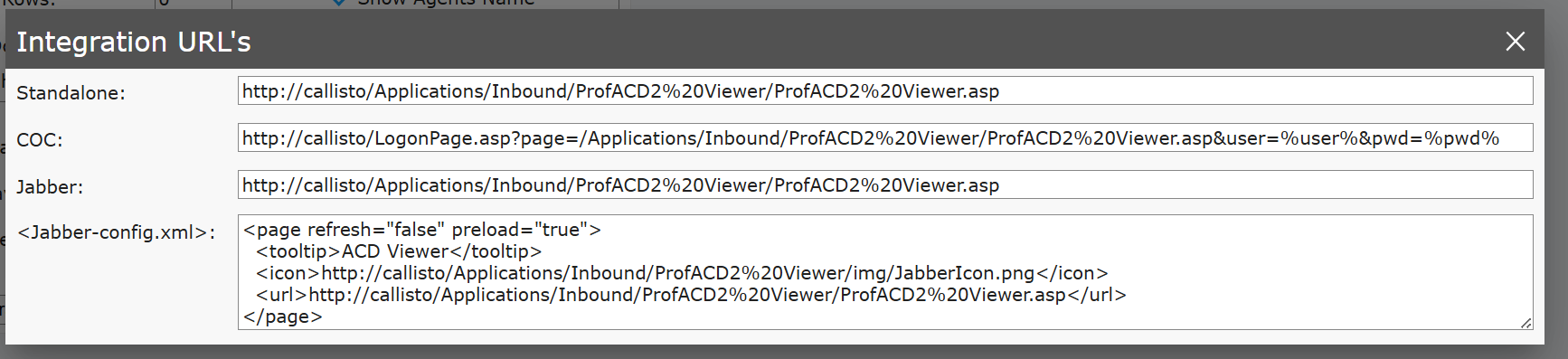
| Standalone | The URL used to open the ProfACD Viewer directly in a browser as a standalone web page. |
| COC | The URL used to integrate the ProfACD Viewer into the COC. It points to the logon page and passes the user credentials as parameters (%user% and %pwd%) so the Viewer is opened in an authenticated session. |
| Jabber | The URL used to integrate the ProfACD Viewer into Cisco Jabber. |
| <Jabber-config.xml> | The configuration snippet to be added to the Jabber configuration file. It defines the page behavior (refresh, preload), the tooltip, the icon, and the URL of the ProfACD Viewer used for the Jabber integration. |
Once integrated using the COC integration URL, the ProfACD Viewer is rendered as an HTML pane within the COC. Agents can view the configured queues, the calls waiting in each queue, and the agents assigned to them, along with their call states and statistical information.
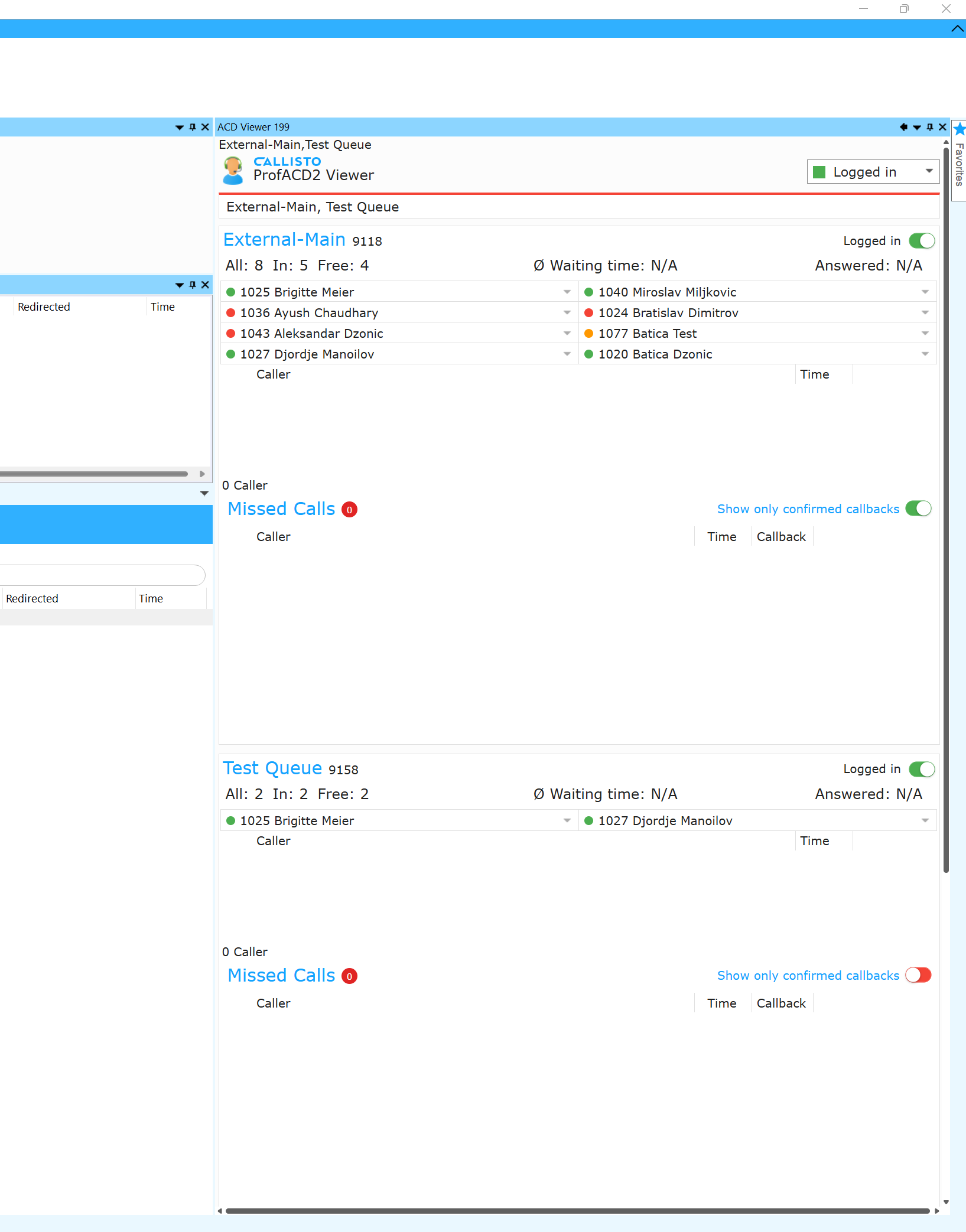
Once integrated using the COC integration URL, the ProfACD Viewer is rendered as an HTML pane within the COC. For each configured queue, the pane displays the queue name and number, the agents assigned to it, the callers currently waiting, and the missed calls.
At the top of the pane, the Logged in control shows and toggles the agent’s overall login status for the displayed queues.
Each queue is shown with its name and number (e.g. External-Main 9118) and a per-queue Logged in toggle. The header line summarizes the queue state:
| All | The total number of agents assigned to the queue. |
| In | The number of agents currently logged in to the queue. |
| Free | The number of logged-in agents that are currently available to take a call. |
| Ø Waiting time | The average waiting time for callers in the queue. |
| Answered | The number of calls answered in the queue. |
Below the header, the agents assigned to the queue are listed with their number and name. A colored indicator next to each agent shows their current state:
The Missed Calls section of each queue lists calls that were not answered, together with the caller and the Time of the call. The number next to the heading indicates how many missed calls there are.
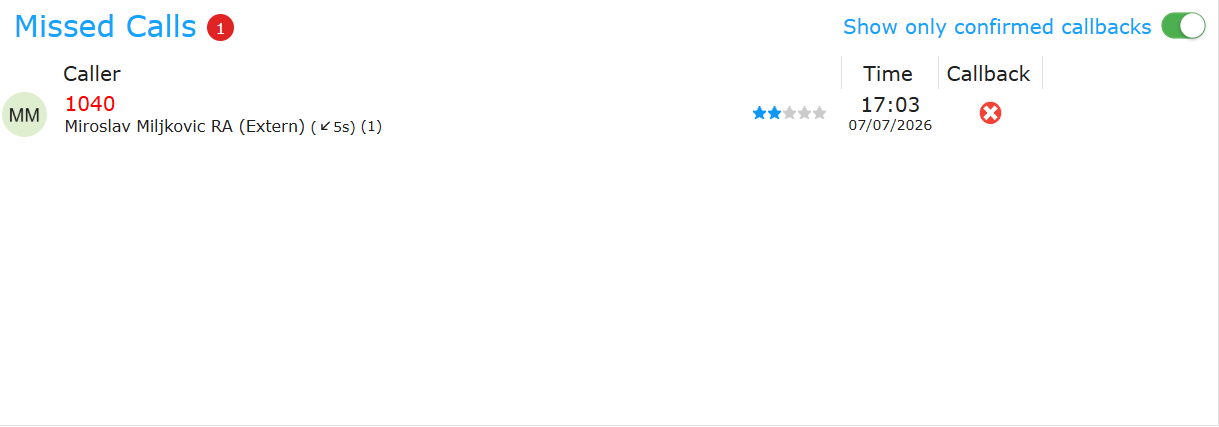
The Callback column indicates whether the caller requested a callback, and the Show only confirmed callbacks toggle filters the list to display only those missed calls for which a callback was confirmed.
Missed calls and callback requests are only tracked when a callback is defined — either on timeout or in the announcement list. For details on how callbacks are offered and recorded, see the chapter Missed Calls and Callback.
When the AI feature is enabled in Callisto, the ProfACD Viewer displays an AI Call Summary for an incoming call before it reaches an agent. The queue, agent, and caller layout remains the same as described above; the summary is shown beneath the caller entry of the queue receiving the call.
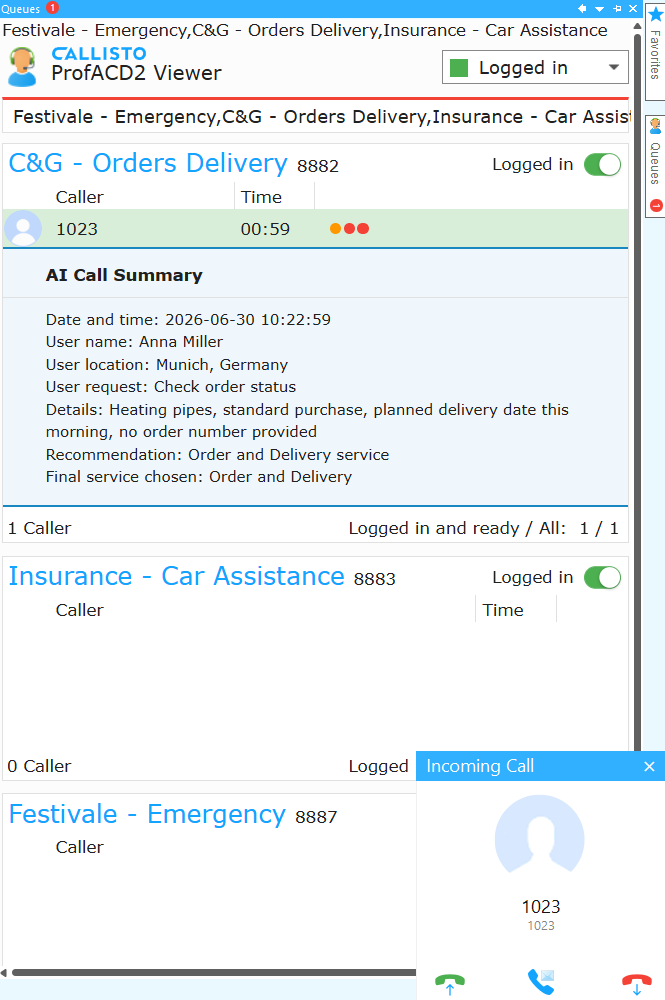
The summary is generated from the caller’s interaction before the call is connected, giving the agent an overview of the reason for the call and the service the caller was routed to. This allows the agent to understand the context of the call in advance and be prepared before answering.
Freiburgstrasse 251
CH-3018 Bern
Switzerland
T: +41 31 531 11 11
F: +41 31 531 11 12
sales@ctmodule.com
Gospodara Vučića 145
RS-11000 Belgrade
Serbia
T: +381 18 308076
sales@ctmodule.com