This page is optimized for desktop computers and tablets. To access it, try one of the following points:
- Access this page from a different device.
- If you’re on a tablet, rotate it.
- Check the “Desktop site” option in your browser settings.
This page is optimized for desktop computers and tablets. To access it, try one of the following points:
 Export Article
Export Manual
x
Export
Export Article
Export Manual
x
Export
 Print
Print
The Log screen displays a real-time activity log for the Alarming Mobile application. It serves as a debugging and administration tool, providing a detailed, chronological record of internal events, setting changes, network requests, and navigation within the app.
This screen is accessed from Settings → Debug → Show Logs.
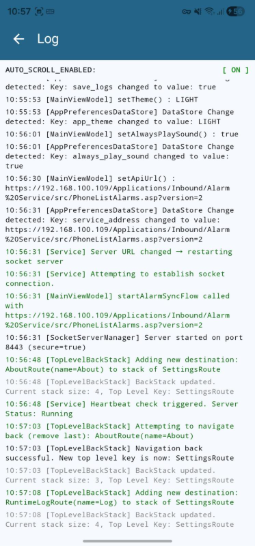
| Element | Description |
|---|---|
| Title | "Log" |
| Back Button (←) | Returns to Settings. |
| Control | Description |
|---|---|
| AUTO_SCROLL_ENABLED | Displays and controls the auto-scroll status [ON/OFF]. When ON, the screen automatically scrolls to the newest log entry as messages are generated. |
Log entries are listed chronologically from oldest (top) to newest (bottom). Each entry contains:
| Field | Example | Description |
|---|---|---|
| Timestamp | 10:56:30 | Exact time of the event. |
| Source/Module | [Service] | The module or class responsible for the event. |
| Event Message | Server URL changed – restarting socket server | Detailed description of the action or status. |
Log files can be shared via the standard system sharing sheet. Access this from Settings → Debug → Share Logs. Log file saving must be enabled via the Save logs in file toggle in Debug settings, or via the MDM save_logs attribute.
Freiburgstrasse 251
CH-3018 Bern
Switzerland
T: +41 31 531 11 11
F: +41 31 531 11 12
sales@ctmodule.com
Gospodara Vučića 145
RS-11000 Belgrade
Serbia
T: +381 18 308076
sales@ctmodule.com