This page is optimized for desktop computers and tablets. To access it, try one of the following points:
- Access this page from a different device.
- If you’re on a tablet, rotate it.
- Check the “Desktop site” option in your browser settings.
This page is optimized for desktop computers and tablets. To access it, try one of the following points:
 Export Article
Export Manual
x
Export
Export Article
Export Manual
x
Export
 Print
Print
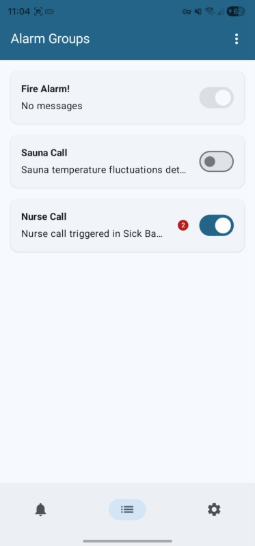
The Alarm Groups screen allows users to manage and monitor different categories of alarms. It provides a quick overview of group statuses and allows for global status management through menu options.
| Element | Description |
|---|---|
| Title | "Alarm Groups" displayed at the top. |
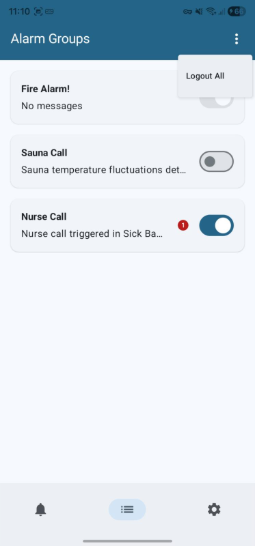
| Options Menu (⋮) | Dynamic overflow menu — content depends on the user's current login state. |
| Action | Description |
|---|---|
| Logout All | Logs the user out from all groups, except those configured as "Always Logged In" (e.g., Fire Alarm!). |
| Login Last | Reverts the status of all modifiable groups to the state they were in before the last mass logout. |
| Card Element | Description |
|---|---|
| Group Type | Bolded group name (e.g., Fire Alarm!, Nurse Call, Sauna Call). |
| Description | Brief status or last message below the group name (e.g., "No messages"). |
| Status Switch | Toggle switch indicating whether the group is active (receiving notifications). Grayed out for "Always Logged In" groups. |
| Unread Indicator | Red bubble showing the count of unread notifications for that group. |
Freiburgstrasse 251
CH-3018 Bern
Switzerland
T: +41 31 531 11 11
F: +41 31 531 11 12
sales@ctmodule.com
Gospodara Vučića 145
RS-11000 Belgrade
Serbia
T: +381 18 308076
sales@ctmodule.com