This page is optimized for desktop computers and tablets. To access it, try one of the following points:
- Access this page from a different device.
- If you’re on a tablet, rotate it.
- Check the “Desktop site” option in your browser settings.
This page is optimized for desktop computers and tablets. To access it, try one of the following points:
 Export Article
Export Manual
x
Export
Export Article
Export Manual
x
Export
 Print
Print
This chapter covers how to install the application, configure the Phone Services URL, grant the required system permissions, and set up alarm sound files.
The application can be installed using any standard Mobile Device Management (MDM) platform, or manually by side-loading the generated .apk file from the device file system.
Upon the first successful launch after installation, all required permissions must be granted. The immediate next step is to configure the Phone Services URL. This URL connects the client application to the backend service and allows it to retrieve and display alarm history for the associated user groups.
The URL can be set in two ways:
Note: To enable the Alarm Groups Log in/out feature, add the version=2 parameter to the base URL.
The application supports managed configuration via the service_address attribute in the MDM IT admin console. The following parameters can be configured:
| Parameter | Type | Description |
|---|---|---|
service_address | string | Phone Services URL endpoint |
always_play_sound | boolean | Play sound even in silent/vibrate mode |
notification_sound_volume | integer (0–15) | Notification volume level |
save_logs | boolean | Save application logs to file |
Parameters set within the managed configuration have higher priority and cannot be changed via Intents.
Example VMware Workspace ONE Custom Settings XML:
<characteristic
  type="com.airwatch.androidwork.app:com.callistocruise.alarming"
  uuid="568bc89d-1df8-4ce9-a041-e5a24acdb7ec">
  <parm name="service_address"
    value="http://CALLISTO_IP_ADDRESS/Applications/Inbound/Alarm%20Service/src/PhoneListAlarms.asp?version=2"
    type="string">
  <parm name="always_play_sound" value="True" type="boolean">
  <parm name="notification_sound_volume" value="10" type="integer">
  <parm name="save_logs" value="True" type="boolean">
</characteristic>
If the MDM console cannot read the configuration schema, use an Intent broadcast instead.
SOTI example:
sendintent -b "intent:#Intent;action=com.callistocruise.alarming.intent.action.SET_HOST_ADDRESS;S.service_address=http://CALLISTO_IP_ADDRESS/Applications/Inbound/Alarm%20Service/src/PhoneListAlarms.asp?version=2;end"VMware Workspace ONE example:
mode=implicit,broadcast=true,
action=com.callistocruise.alarming.intent.action.SET_HOST_ADDRESS,
extraString=service_address=http://CALLISTO_IP_ADDRESS/Applications/Inbound/Alarm%20Service/src/PhoneListAlarms.asp?version=2The application supports custom alarm sound files per alarm group. To use different sounds:
/storage/emulated/0/Android/media/com.callistocruise.alarmingThe app can play sound even when the device is in Vibrate or Mute mode (subject to DND Alarms exception). Configure via MDM (always_play_sound attribute) or via Intent:
sendintent -b "intent:#Intent;action=com.callistocruise.alarming.intent.action.SET_ALWAYS_PLAY_SOUND;B.always_play_sound=true;end;"Note: This option has no effect if the user has turned off Show Notifications for the app, or if the Alarms DND exception is disabled in phone settings.
Volume can be set from 0 (minimum) to 15 (maximum). Configure via MDM (notification_sound_volume attribute) or via Intent:
sendintent -b "intent:#Intent;action=com.callistocruise.alarming.intent.action.NOTIFICATION_SOUND_VOLUME;i.notification_sound_volume=15;end;"To ensure the application functions correctly and provides continuous alarm monitoring, the following permissions must be explicitly granted by the user at runtime.
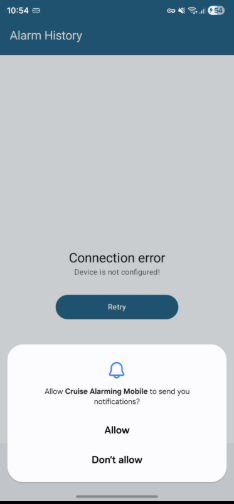
| Attribute | Detail |
|---|---|
| Type | Runtime Permission |
| Action | Tap Allow in the system dialog. |
| Impact if denied | No visual notifications or notification sounds will be received. |
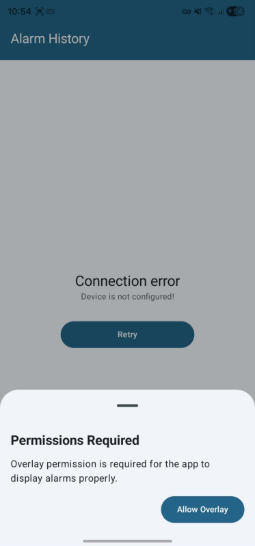
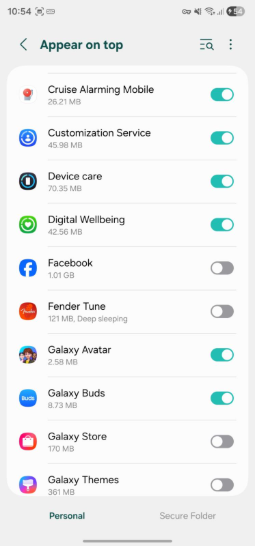
| Attribute | Detail |
|---|---|
| Type | Special Permission |
| Action | Tap Allow Overlay, then enable the toggle in the settings screen. |
| Impact if denied | Service will not restart automatically on system boot; alarms may not display over other apps. |
| Note | Required for Android OS versions higher than 10. |
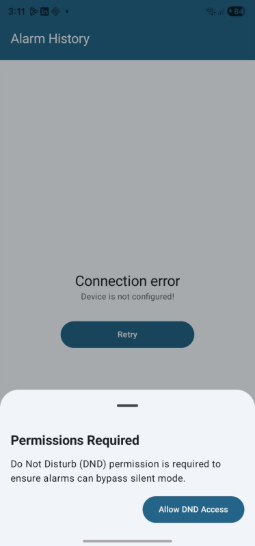
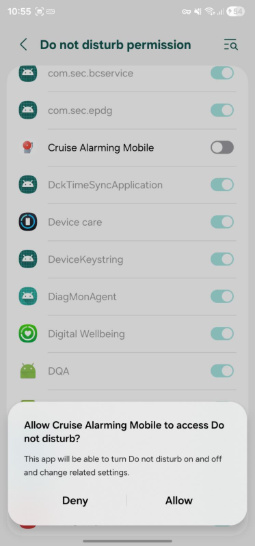
| Attribute | Detail |
|---|---|
| Type | Special Permission |
| Action | Tap Allow. |
| Impact if denied | Alarms will be silenced by DND mode; the Always Play Sound feature will not work correctly. |
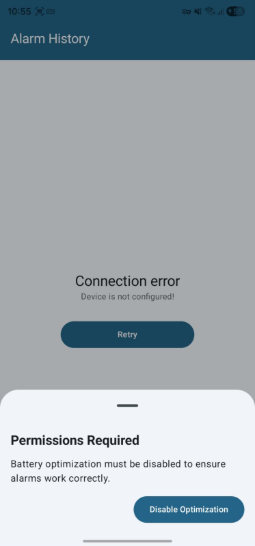
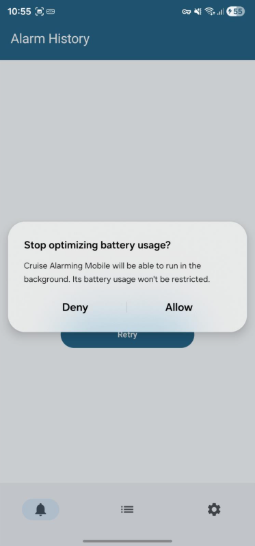
| Attribute | Detail |
|---|---|
| Type | Special Permission |
| Action | Tap Allow (Disable Optimization). |
| Impact if denied | The OS may restrict background operation, preventing timely alarm reception. |
The Cruise Alarming Mobile service starts automatically when the app is launched for the first time and remains active even after device reboot. The service is only stopped if the application is forcefully closed via Force Stop in phone settings.
Freiburgstrasse 251
CH-3018 Bern
Switzerland
T: +41 31 531 11 11
F: +41 31 531 11 12
sales@ctmodule.com
Gospodara Vučića 145
RS-11000 Belgrade
Serbia
T: +381 18 308076
sales@ctmodule.com